
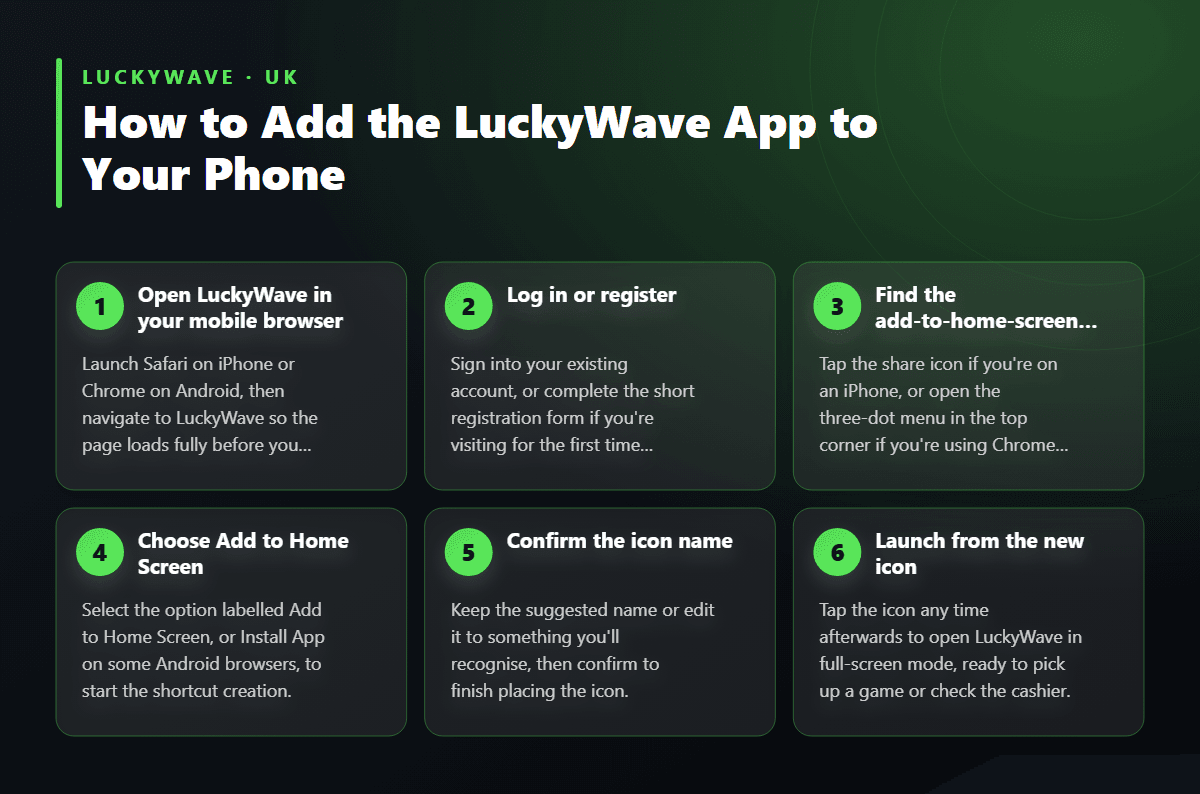
1
Open LuckyWave in your mobile browser
Launch Safari on iPhone or Chrome on Android, then navigate to LuckyWave so the page loads fully before you continue to the next step.
Looking for the LuckyWave app? LuckyWave runs as a Progressive Web App you add straight to your phone's home screen, with no app store download required. This guide covers how to install it, what's available once it's there, and how to log in or sign up from a mobile browser.
LuckyWave doesn't sit in the Google Play Store or Apple App Store. Instead, the casino runs as a Progressive Web App (PWA) — a mobile experience you launch directly from your phone's browser and then pin to the home screen for quick access later. Built around the brand's launch in 2024, this approach means there's no separate file to download, no install permissions dialogue to click through, and no waiting for a store review before new features ship.
Because a PWA lives inside the browser rather than as a standalone program, updates happen automatically in the background. You never need to manually check for a new version — the icon on your home screen always opens the current build of the site, with the same games, cashier and promotions you'd see logging in from a laptop.
This format also means the app takes up very little storage on your phone, since it's effectively a bookmark dressed up to behave like a full app, rather than a large program installed onto your device.
| Feature | Details |
|---|---|
| App type | Progressive Web App (PWA), added via browser |
| Installation | No app store download required |
| Game library | 4,880+ games |
| Live casino | Evolution-powered tables, including Crazy Time and Lightning Roulette |
| Minimum deposit | £20 |
| Minimum withdrawal | £50 |
| Support | Available 24/7 |
Setting up the app takes under a minute on either Android or iPhone, since both platforms let you pin a web page to the home screen as if it were a native install. Once it's there, the icon opens LuckyWave in full-screen mode, without the browser's address bar, tab switcher or bookmarks toolbar getting in the way of the games.
The exact wording differs slightly between browsers — Safari calls it "Add to Home Screen" while some Android browsers phrase it as "Install App" — but the result is the same shortcut sitting among your other icons. The steps further down this page work whether you're setting the casino up for the first time, moving to a new phone, or reinstalling after clearing storage.
Because LuckyWave runs through the browser rather than a downloaded package, there's no lengthy compatibility list to check against your specific phone model. If your handset can run a recent version of Safari or Chrome and connect to the internet, it can run the app. Older phones with outdated browsers may render pages more slowly, but the site itself doesn't demand specialised hardware the way some native gaming apps do.
A stable Wi-Fi or mobile data connection makes the biggest practical difference, particularly for live dealer tables streaming video in real time. On a slower connection, slots and table games still load fine, though live casino footage may take a moment longer to buffer. Keeping your browser itself updated, rather than the LuckyWave icon, is the only maintenance the app genuinely needs.
Follow these steps to pin LuckyWave to your home screen on Android or iPhone, so the casino opens like any other app.
The mobile version mirrors the desktop library rather than offering a cut-down selection. Across more than 4,880 games, you'll find slots, table games, progressive jackpots and a full live casino, all optimised for touchscreen controls rather than simply shrunk down from a desktop layout.
Live tables run through Evolution, bringing titles such as Crazy Time, Lightning Roulette and Monopoly Big Baller to your phone with the same real dealers, chat windows and betting limits you'd find on desktop. On the slots side, featured titles including LuckyWave Bonanza, Blast the Bass, 3 Chests: Bonus Combo, Luck of Panda: Bonus Combo, Fruit Million and Chicken Road 2.0 load quickly on mobile data or Wi-Fi, with providers including live88, ReadyPlay, Sneakyslots, Eagaming, Sagaming and EnjoyGaming rounding out a catalogue built for both quick sessions and longer play.
Crypto deposits and withdrawals using Bitcoin, Ethereum, Litecoin or Tether work the same way on mobile as on desktop, processed through the cashier built directly into the PWA, alongside card and e-wallet options for players who prefer traditional banking.
A standard browser bookmark still opens LuckyWave fine, but it keeps the address bar, tabs and browser chrome visible, and it won't offer a dedicated icon sat among your other apps. Adding the PWA to your home screen gives you a one-tap launch that opens full-screen, loads your last session faster, and looks identical to any native app icon you're used to tapping.
It also means notifications about your account, where supported by your phone's settings, can surface the same way they would for an installed app, rather than relying on email alone to flag a promotion or a cashier update. For players who switch between a laptop during the day and a phone in the evening, the PWA closes that gap without asking you to manage two separate accounts or installs.
Registration from a mobile browser follows the same short form as on desktop: enter an email address, choose a password, and confirm you're aged 18 and over before submitting. There's no separate mobile sign-up flow to learn, so details you start typing on a phone and finish on a laptop will match up without any extra steps.
If you already hold an account, logging in from the home screen icon takes you straight to the same session you'd see in a desktop browser, with game history, cashier balance and saved payment methods all carried across automatically. Your preferred currency, whether GBP, EUR or USD, stays attached to the account regardless of which device you log in from.
For a full walkthrough of the sign-up fields and what's needed to get verified, the registration page covers each step before you add the shortcut to your home screen.
The cashier works identically whether you reach it through the home screen icon or a browser tab. Deposits start from £20, using Visa, Mastercard, PayPal, Skrill, Bank Transfer or supported cryptocurrencies, with the account funding promptly in most cases so you can get straight into a game rather than waiting around.
Withdrawals from a mobile device start at £50, and requests sent through e-wallets such as PayPal or Skrill typically clear within 1–3 business days once your identity is verified. Support sits available around the clock, so if a mobile payment needs checking, a live agent is on hand regardless of the hour or day of the week.
More detail on funding methods, limits and processing times sits on the payments page, which is worth a look before your first deposit on either mobile or desktop.